Whether you’re filling out a web form, firing off messages in a group chat, or drafting an email on the go, boosting your typing speed on your phone can save precious seconds—or even minutes. The good news? There are more ways to streamline your mobile typing than you might think, from hidden keyboard shortcuts to entirely new input methods. By adopting one or more of these techniques, you can reclaim time to step away from your screen—or send even more messages in less time. Here are five practical strategies to supercharge your mobile typing efficiency.
- Embrace Swipe Typing
Swipe typing, also known as glide typing, is a game-changer available on many smartphone keyboards. Instead of tapping each letter individually, you slide your finger across the keyboard from one letter to the next, forming words without lifting your finger. With practice, this fluid motion can dramatically increase your typing speed.
Swipe typing is enabled by default on Pixel and iOS devices, but on Samsung phones, you may need to activate it manually.
How to Enable Swipe Typing:
- Pixel: Tap the gear icon on your keyboard, then select “Glide typing” to toggle or adjust settings.
- iPhone: Navigate to Settings > General > Keyboard and toggle “Slide to Type.”
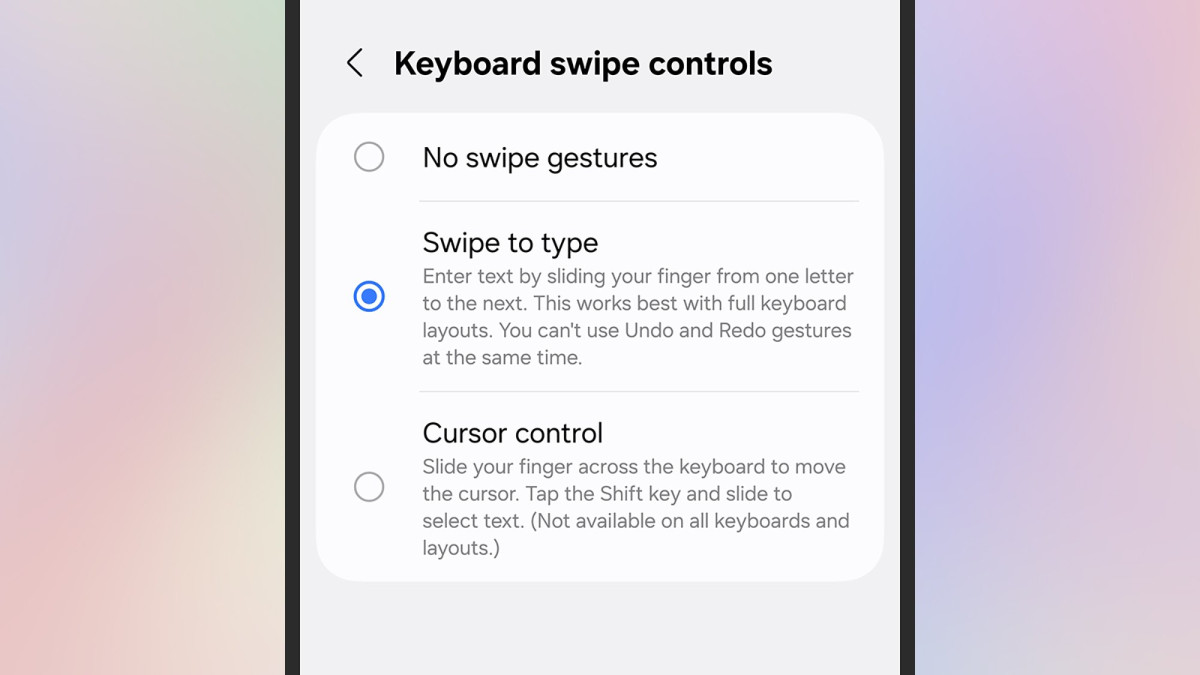
- Samsung: Tap the gear icon on your keyboard, then go to Swipe, touch, and feedback > Keyboard swipe controls > Swipe to type to enable it.
Once you get the hang of swipe typing, you’ll wonder how you ever lived without it.
- Leverage Text Shortcuts
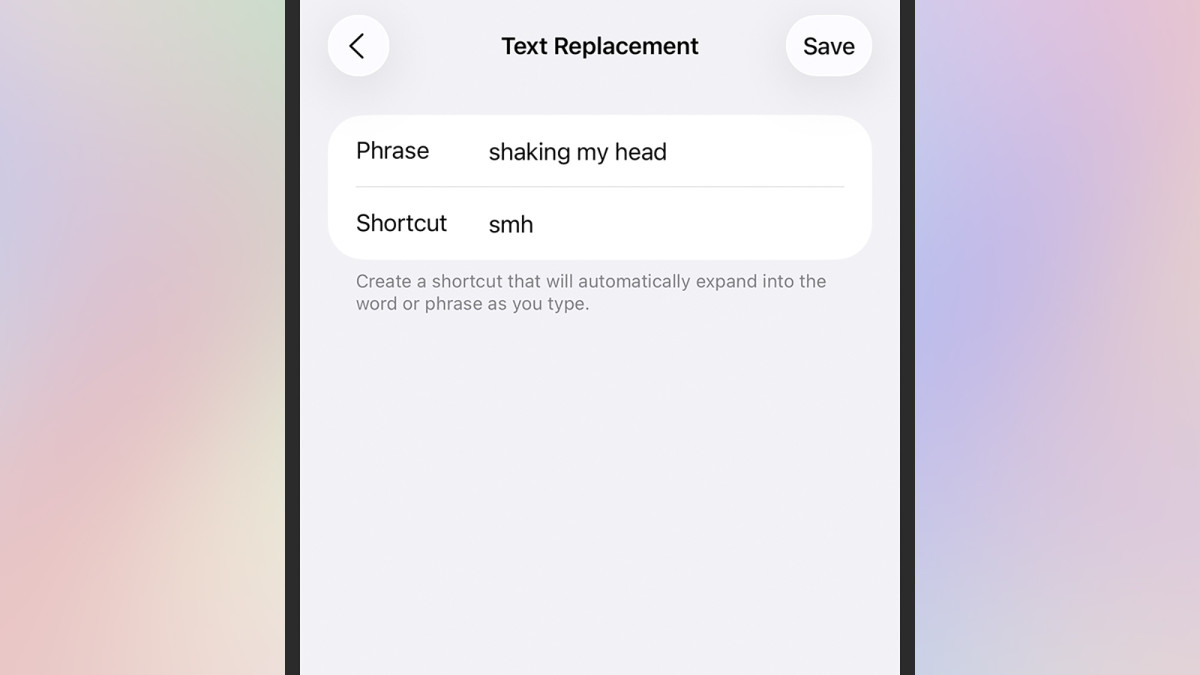
If you frequently type the same phrases—like “be right back” or “on my way”—text shortcuts can be a lifesaver. These allow you to assign a short code (e.g., “omw”) that auto-expands into a full phrase (“on my way”) when typed, saving you keystrokes and time.
How to Set Up Text Shortcuts:
- Pixel: Tap the gear icon on your keyboard, select Dictionary > Personal dictionary, choose your language, and tap the “+” icon to add a shortcut.
- Samsung: Tap the gear icon on your keyboard, then select Text shortcuts to add or edit shortcuts.
- iPhone: Go to Settings > General > Keyboard > Text Replacement to manage shortcuts.
By automating repetitive phrases, text shortcuts make your typing faster and more efficient.
- Optimize for One-Handed Typing
Typing with one hand can slow you down, especially if you’re juggling a coffee or holding onto a subway pole. Thankfully, most phone keyboards offer a one-handed mode that shrinks and shifts the keyboard to one side, making it easier to type with a single hand.
How to Enable One-Handed Mode:
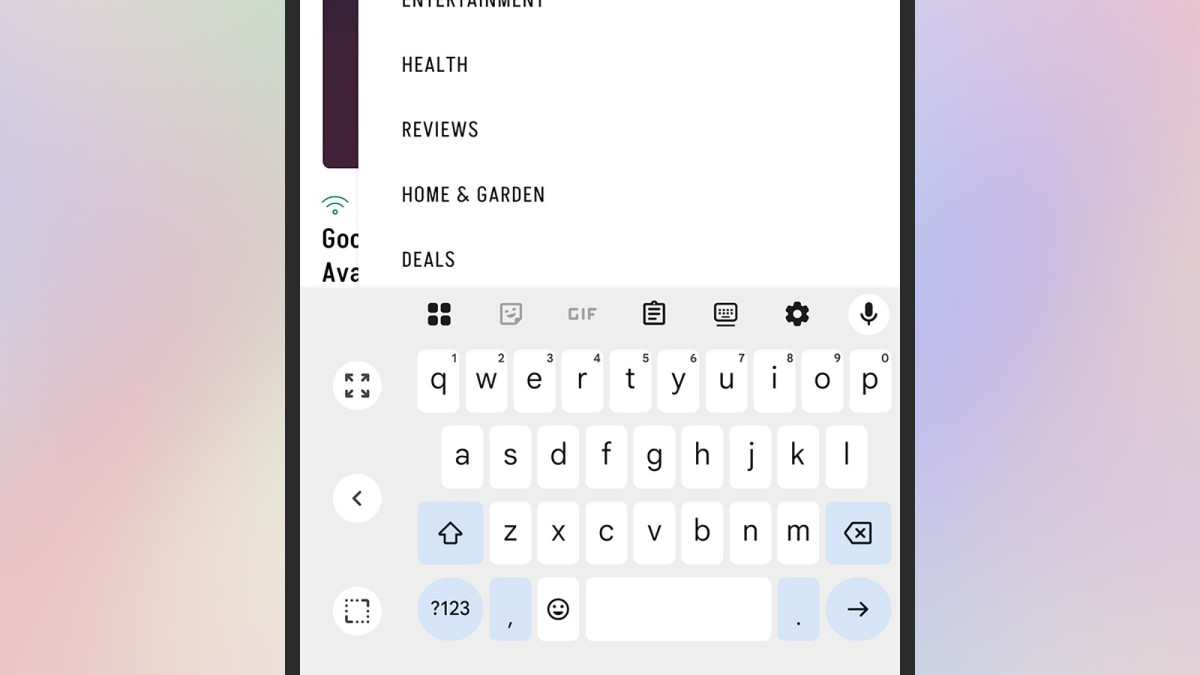
- Android (Pixel): Open the keyboard, tap the four-square icon in the top left, and select the one-handed mode option. Use the arrow to shift the keyboard left or right.
- Android (Samsung): Open the keyboard, tap the three-dot menu in the top right, and select one-handed mode, then adjust the keyboard’s position as needed.
- iPhone: Open the keyboard, press and hold the globe or emoji icon (bottom left), and choose the left- or right-aligned keyboard icon. You can also revert to the default size.
This feature is a must for anyone who needs to type on the go with one hand free.
- Use Voice Typing
Voice typing is a powerful alternative when your hands are occupied or you want to input text quickly. While it might not be ideal for dictating private messages in a crowded space, it’s perfect for multitasking or when you need to capture thoughts faster than you can type. Many users find that voice input outpaces their typing speed, especially when including punctuation by saying things like “comma” or “period.”
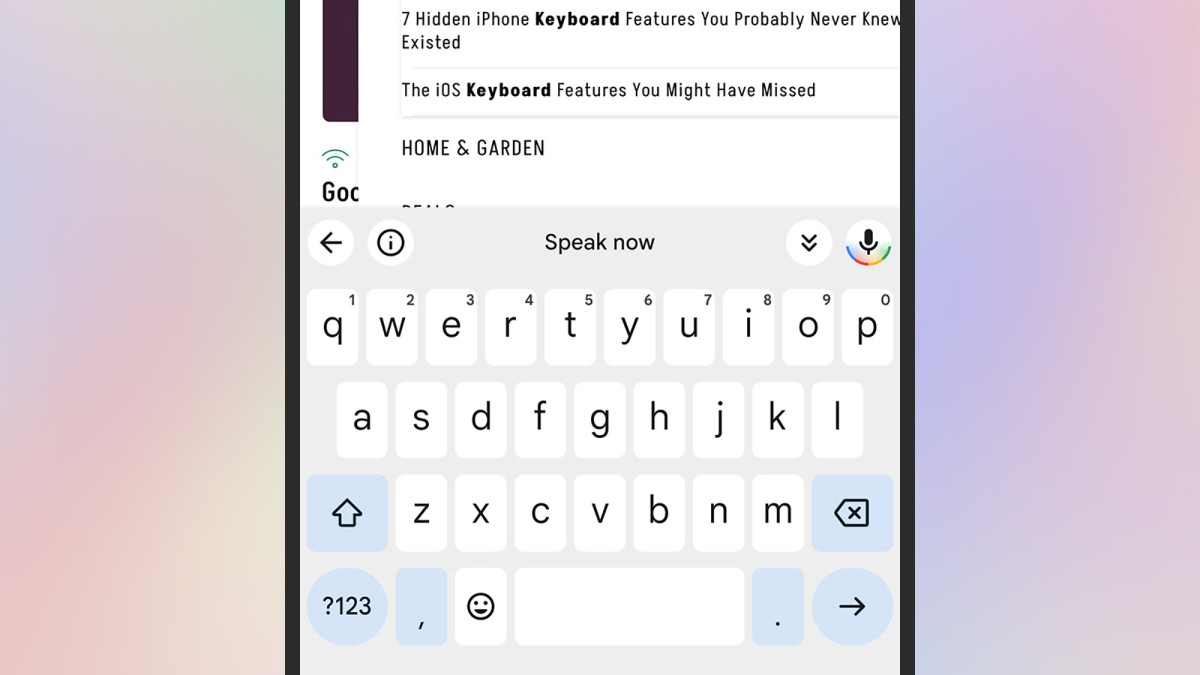
How to Use Voice Typing: Every default keyboard has a microphone icon for voice input:
- Pixel: Located in the top right corner.
- Samsung: Found in the bottom left corner.
- iPhone: Positioned in the bottom right corner.
Simply tap the microphone, start speaking, and watch your words appear. It’s a fast and hands-free way to get your thoughts down.
- Experiment with Third-Party Keyboards
If your default keyboard isn’t cutting it, third-party options like Typewise or Microsoft’s SwiftKey (available for both Android and iOS) can offer a tailored typing experience. These keyboards often provide larger keys, enhanced customization, and advanced features like superior autocorrect, predictive text, or swipe typing optimized for speed.
- Typewise: Features a unique hexagonal key layout for fewer typos, bigger buttons, and robust customization options, including swipe typing.
- SwiftKey: Known for its highly accurate autocorrect and predictive text, SwiftKey adapts to your typing style and offers multiple layout and theme options.
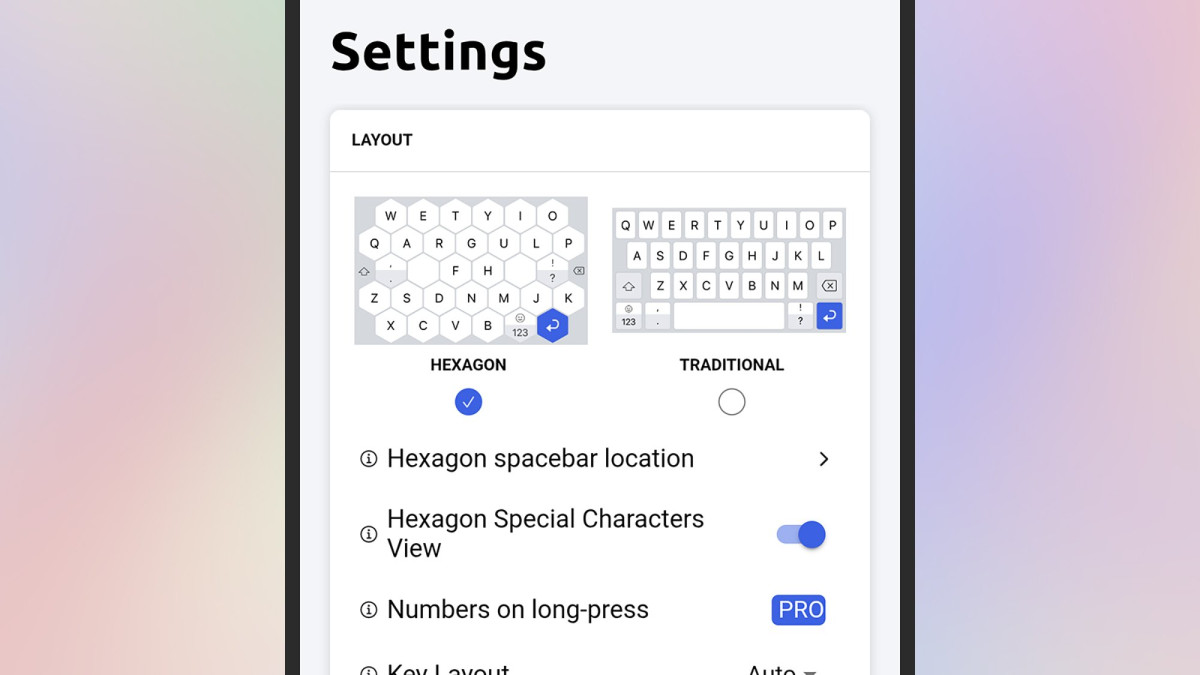
How to Install a Third-Party Keyboard:
- Download the keyboard app from the Google Play Store (Android) or App Store (iOS).
- Follow the app’s setup instructions to enable it and grant necessary permissions.
- Switch between keyboards by tapping the keyboard or globe icon on your default keyboard.
Experimenting with alternative keyboards can help you find one that aligns perfectly with your typing habits, boosting both speed and accuracy.
Final Thoughts
By incorporating swipe typing, text shortcuts, one-handed mode, voice typing, or a third-party keyboard, you can transform your mobile typing experience. These strategies not only save time but also make texting, emailing, or form-filling feel effortless. Try one—or combine several—to find what works best for you. With a little practice, you’ll be typing faster and freeing up more time for what matters most, whether that’s stepping away from your phone or crafting even more messages with ease.
Home
detail
5 Ways to Type Faster on Your Phone
2025-09-09T14:40:19
Whether you’re filling out a web form, firing off messages in a group chat, or drafting an email on the go, boosting your typing speed on your phone can save precious seconds—or even minutes. The good news? There are more ways to streamline your mobile typing than you might think, from hidden keyboard shortcuts to entirely new input methods. By adopting one or more of these techniques, you can reclaim time to step away from your screen—or send even more messages in less time. Here are five practical strategies to supercharge your mobile typing efficiency.
- Embrace Swipe Typing
Swipe typing, also known as glide typing, is a game-changer available on many smartphone keyboards. Instead of tapping each letter individually, you slide your finger across the keyboard from one letter to the next, forming words without lifting your finger. With practice, this fluid motion can dramatically increase your typing speed.
Swipe typing is enabled by default on Pixel and iOS devices, but on Samsung phones, you may need to activate it manually.
How to Enable Swipe Typing:
- Pixel: Tap the gear icon on your keyboard, then select “Glide typing” to toggle or adjust settings.
- iPhone: Navigate to Settings > General > Keyboard and toggle “Slide to Type.”
- Samsung: Tap the gear icon on your keyboard, then go to Swipe, touch, and feedback > Keyboard swipe controls > Swipe to type to enable it.
Once you get the hang of swipe typing, you’ll wonder how you ever lived without it.
- Leverage Text Shortcuts
If you frequently type the same phrases—like “be right back” or “on my way”—text shortcuts can be a lifesaver. These allow you to assign a short code (e.g., “omw”) that auto-expands into a full phrase (“on my way”) when typed, saving you keystrokes and time.
How to Set Up Text Shortcuts:
- Pixel: Tap the gear icon on your keyboard, select Dictionary > Personal dictionary, choose your language, and tap the “+” icon to add a shortcut.
- Samsung: Tap the gear icon on your keyboard, then select Text shortcuts to add or edit shortcuts.
- iPhone: Go to Settings > General > Keyboard > Text Replacement to manage shortcuts.
By automating repetitive phrases, text shortcuts make your typing faster and more efficient.
- Optimize for One-Handed Typing
Typing with one hand can slow you down, especially if you’re juggling a coffee or holding onto a subway pole. Thankfully, most phone keyboards offer a one-handed mode that shrinks and shifts the keyboard to one side, making it easier to type with a single hand.
How to Enable One-Handed Mode:
- Android (Pixel): Open the keyboard, tap the four-square icon in the top left, and select the one-handed mode option. Use the arrow to shift the keyboard left or right.
- Android (Samsung): Open the keyboard, tap the three-dot menu in the top right, and select one-handed mode, then adjust the keyboard’s position as needed.
- iPhone: Open the keyboard, press and hold the globe or emoji icon (bottom left), and choose the left- or right-aligned keyboard icon. You can also revert to the default size.
This feature is a must for anyone who needs to type on the go with one hand free.
- Use Voice Typing
Voice typing is a powerful alternative when your hands are occupied or you want to input text quickly. While it might not be ideal for dictating private messages in a crowded space, it’s perfect for multitasking or when you need to capture thoughts faster than you can type. Many users find that voice input outpaces their typing speed, especially when including punctuation by saying things like “comma” or “period.”
How to Use Voice Typing: Every default keyboard has a microphone icon for voice input:
- Pixel: Located in the top right corner.
- Samsung: Found in the bottom left corner.
- iPhone: Positioned in the bottom right corner.
Simply tap the microphone, start speaking, and watch your words appear. It’s a fast and hands-free way to get your thoughts down.
- Experiment with Third-Party Keyboards
If your default keyboard isn’t cutting it, third-party options like Typewise or Microsoft’s SwiftKey (available for both Android and iOS) can offer a tailored typing experience. These keyboards often provide larger keys, enhanced customization, and advanced features like superior autocorrect, predictive text, or swipe typing optimized for speed.
- Typewise: Features a unique hexagonal key layout for fewer typos, bigger buttons, and robust customization options, including swipe typing.
- SwiftKey: Known for its highly accurate autocorrect and predictive text, SwiftKey adapts to your typing style and offers multiple layout and theme options.
How to Install a Third-Party Keyboard:
- Download the keyboard app from the Google Play Store (Android) or App Store (iOS).
- Follow the app’s setup instructions to enable it and grant necessary permissions.
- Switch between keyboards by tapping the keyboard or globe icon on your default keyboard.
Experimenting with alternative keyboards can help you find one that aligns perfectly with your typing habits, boosting both speed and accuracy.
Final Thoughts
By incorporating swipe typing, text shortcuts, one-handed mode, voice typing, or a third-party keyboard, you can transform your mobile typing experience. These strategies not only save time but also make texting, emailing, or form-filling feel effortless. Try one—or combine several—to find what works best for you. With a little practice, you’ll be typing faster and freeing up more time for what matters most, whether that’s stepping away from your phone or crafting even more messages with ease.